VectorCraft · Browser workflow
VectorCraft SVG to Lottie workflow
Take an SVG exported from VectorCraft into a browser workflow. Convert simple shapes to Lottie JSON, inspect the result, and prepare a file for your website or app.
Free Lottie Studio tools. No account required for this file workflow.
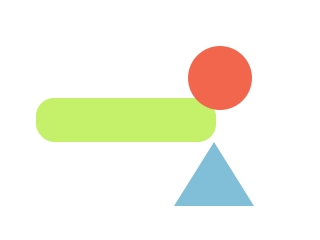
An original Lottie Studio drawing with a rectangle, circle, and polygon. It is a small conversion example, not a VectorCraft export or a compatibility benchmark.
Download the SVG sample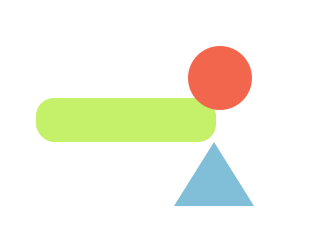
A conversion you can reproduce
We ran the original SVG above through the Lottie Studio converter on October 21, 2026. It produced three shape layers, no image assets and no skipped geometry at 320 × 240 pixels. The 120-frame timeline at 60 fps is two seconds long; all three shapes remain still. Compare the rounded lime rectangle, coral circle and blue triangle in both previews before using the output.
This verifies our SVG-to-JSON conversion, not an export from VectorCraft. The sample deliberately avoids text, transforms, filters and masks. If your export uses those features, inspect the diagnostics and simplify only the affected objects in the source document. A successful simple example does not establish compatibility for a complex illustration.
File handoff
From an SVG export to a checked Lottie file
- 01
Export SVG from VectorCraft
VectorCraft's official format list includes SVG import and export. Export your artwork as SVG, keep the original document, and check the exported drawing in a browser. The native VectorCraft document is not a Lottie file.
- 02
Convert the SVG and read its diagnostics
Upload an SVG under 2 MB or paste its markup into the existing converter. Start with simple shapes and explicit fills. The tool reports the shapes it converted and any skipped elements or unsupported features.
Convert your SVG - 03
Download JSON and inspect playback
Compare the source SVG with the converted preview, then download Lottie JSON. Open that JSON in the preview tool to check dimensions and appearance. A timeline duration in the output does not mean the drawing now moves.
Check the exported JSON - 04
Make small edits and test the destination
Use the Lottie editor for supported color changes or layer visibility, then export JSON. Use an animation authoring tool for keyframes and motion. Test the final file in the exact player and version your website or app will use.
Open the Lottie editor
Before you use the result
Static SVG stays static
This converter translates artwork into a Lottie representation. It does not invent movement or keyframes. SVG animation is not preserved as an animated Lottie timeline.
Check shapes and image fallback separately
Supported geometry can become Lottie shape layers. If no shapes can be converted, the tool embeds the sanitized SVG as one image asset. That image layer does not contain individually editable vector shapes. Mixed artwork can also lose unsupported elements without using fallback.
Review complex artwork before delivery
Text, filters, masks, clipping, gradients, and transforms need close inspection. Convert text to outlines in your source app where available. A warning-free file or a successful preview is not proof that every SVG effect or destination player is supported.
Open the tools for this workflow
SVG to Lottie
Paste or upload SVG and download the converted JSON.
Lottie preview
Compare appearance, dimensions, timing, and renderers.
Lottie editor
Adjust supported colors and layer visibility in JSON.
Need a still SVG from an existing animation? Export a selected Lottie frame for a separate illustration workflow.
Common questions
Can I upload a native VectorCraft document?
The SVG converter accepts SVG markup or .svg files. Export SVG from VectorCraft first. Renaming a native document to .svg or .json does not convert its contents.
Does SVG to Lottie automatically animate my illustration?
No. The output represents the current static geometry. Create movement in an animation authoring tool, then preview the animated export separately.
Will every object remain an editable vector layer?
No. Supported shapes may become shape layers, unsupported elements may be skipped, and an image fallback is a single image layer. Read the diagnostics and compare both previews before treating the file as editable artwork.
Can I bring a Lottie frame back into VectorCraft?
For a still-image workflow, use Lottie to SVG to select a frame and download a standalone SVG. Inspect it before importing into VectorCraft. The snapshot does not carry the Lottie timeline, and image assets remain images.
Sources and scope
Sources checked . The official product page lists VectorCraft v0.9.0 and SVG import/export. This guide describes a file-based handoff to existing Lottie Studio tools. It does not claim a native integration or universal SVG compatibility.
An independent guide by Lottie Studio. We are not affiliated with VectorCraft or ArtCraft. For software downloads, use the official sources above.
EffectCraft Lottie export and browser preview